Snaply gives you full control over punctuation. Choose between automatic AI-powered punctuation or explicit voice commands.
How Punctuation Works
Snaply offers two ways to handle punctuation:
- Automatic Punctuation: Snaply uses AI to insert punctuation naturally as you speak. It detects pauses, intonation, and sentence structure to add periods, commas, and question marks automatically.
- Explicit Punctuation: You have full control. Snaply only adds punctuation when you speak specific commands like “period”, “comma”, or “new line”.
Examples of Punctuation Modes
| Mode | Dictation | Result |
|---|
| Automatic | ”Hello how are you today" | "Hello, how are you today?” |
| Explicit | ”Hello comma how are you today question mark" | "Hello, how are you today?” |
Automatic punctuation works best for natural speech, while explicit punctuation gives you precise control over formatting.
Enable or Change Punctuation Mode
You can toggle between Automatic and Explicit punctuation in your settings.
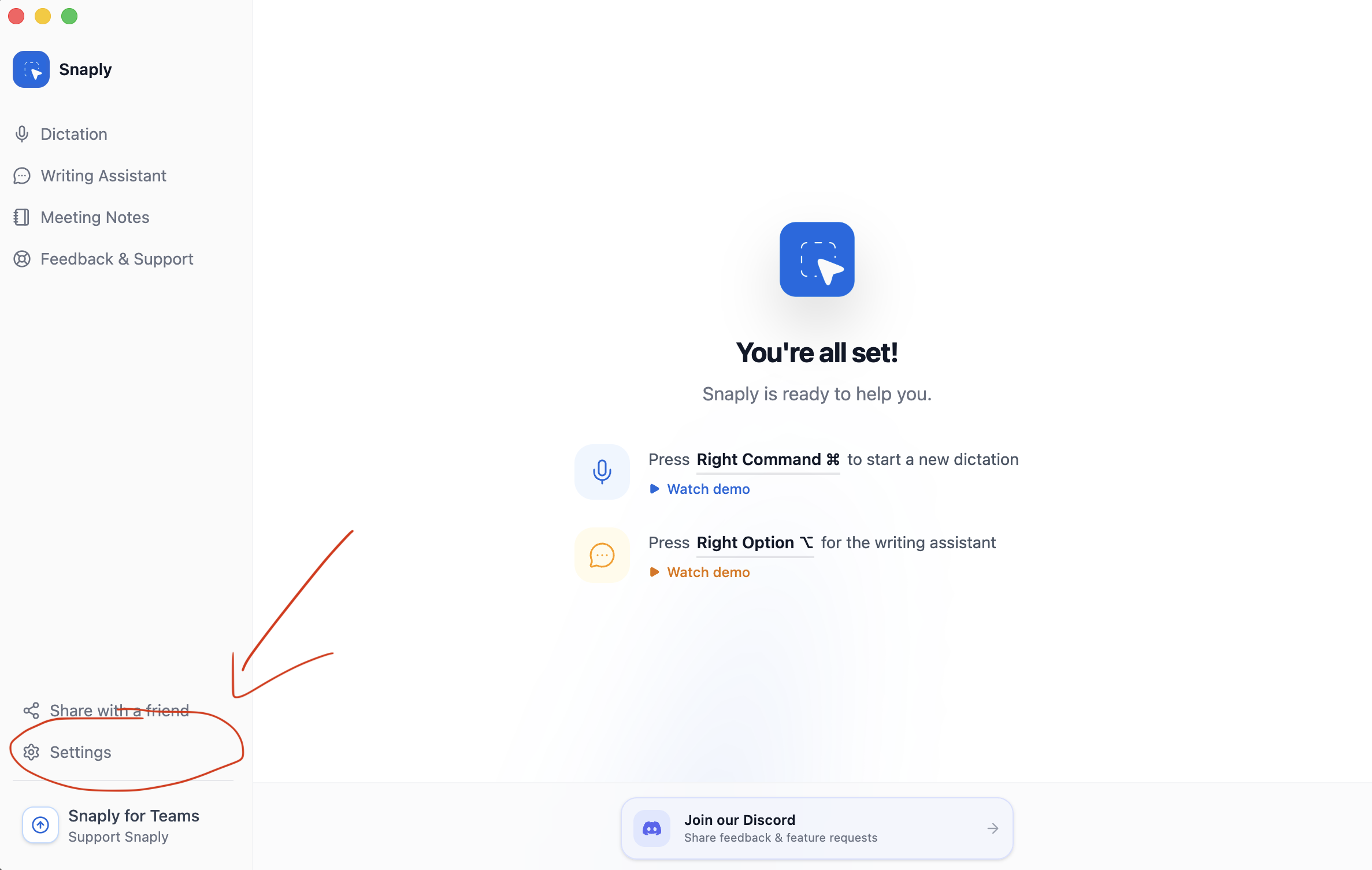
Open Settings
Click on Settings in the bottom left corner of Snaply.
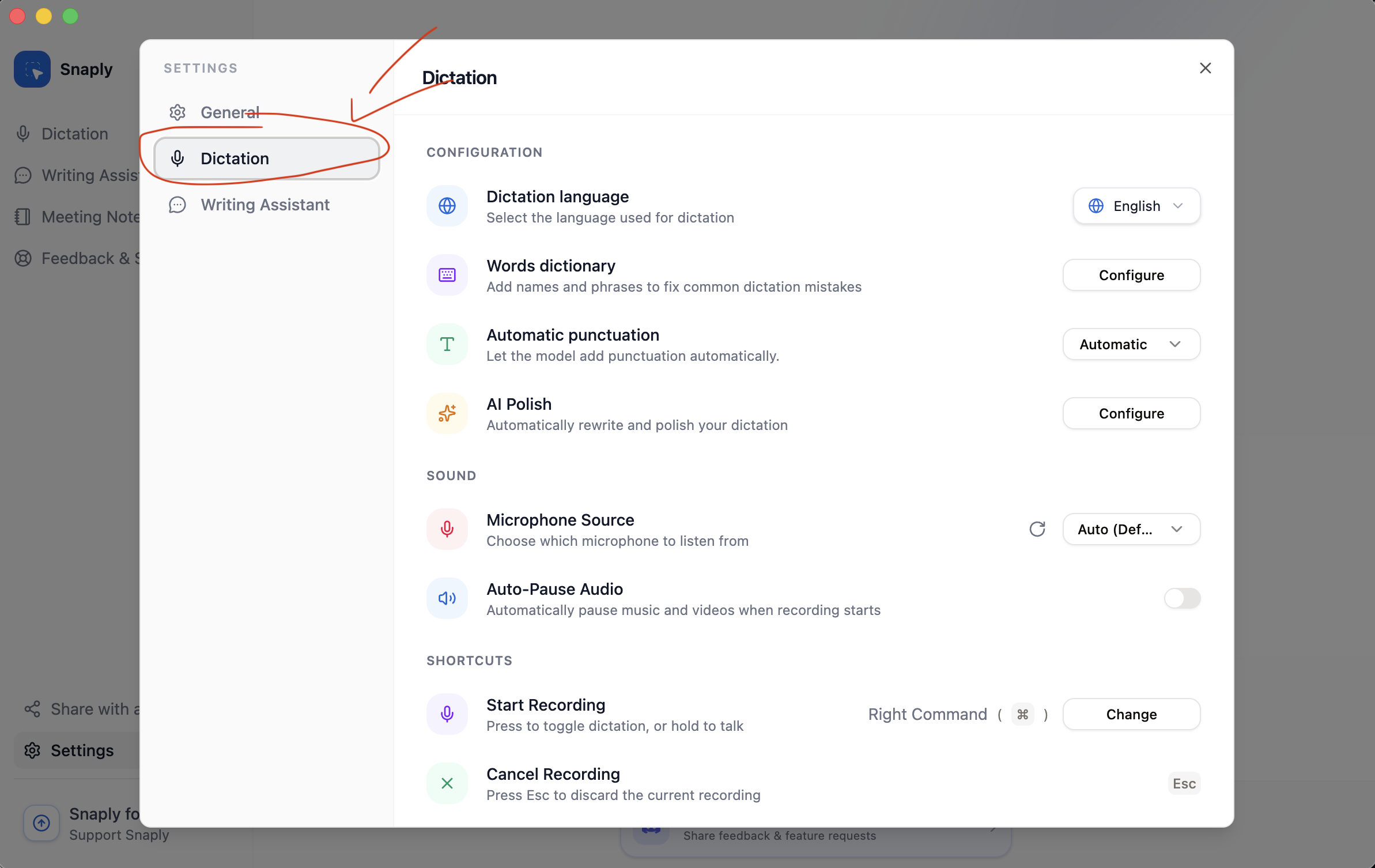
Select Dictation Settings
Navigate to the Dictation section in the settings menu.
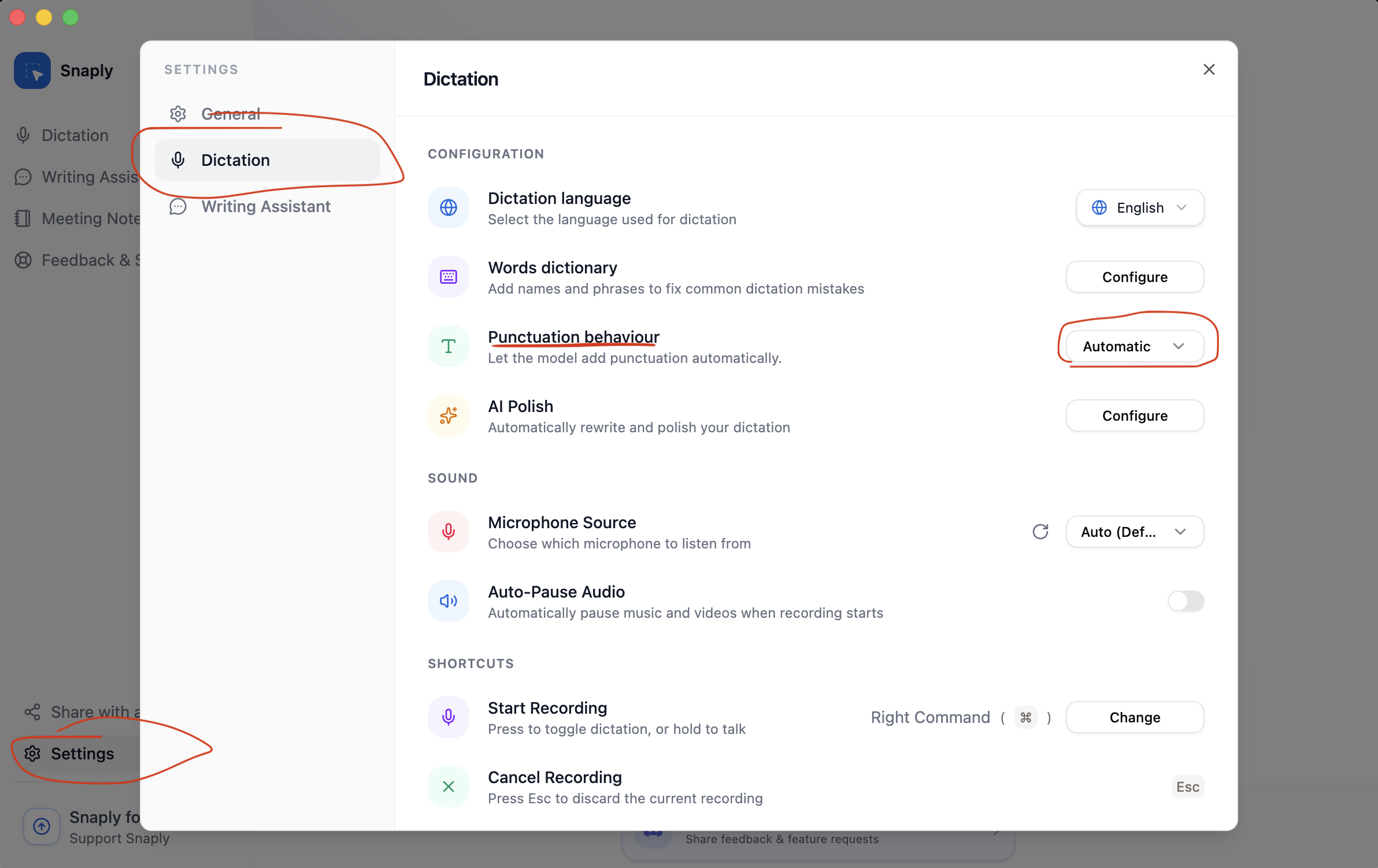
Edit Punctuation Behavior
Find the Punctuation setting and select your preferred mode from the dropdown.
Punctuation Commands
When using Explicit Punctuation (or to override Automatic Punctuation), use these voice commands:
Basic Punctuation
| Command | Symbol |
|---|
| ”Period”, “Full stop”, “Dot” | . |
| ”Comma” | , |
| ”Question mark” | ? |
| ”Exclamation point”, “Exclamation mark” | ! |
| ”Colon” | : |
| ”Semicolon” | ; |
| ”Ellipsis” | ... |
| Command | Action |
|---|
| ”New line”, “Next line”, “Line break” | Moves text to the next line |
| ”New paragraph”, “Next paragraph”, “Paragraph break” | Starts a new paragraph (two line breaks) |
Brackets & Quotes
| Command | Symbol |
|---|
| ”Open parenthesis”, “Left parenthesis” | ( |
| ”Close parenthesis”, “Right parenthesis” | ) |
| ”Open bracket”, “Left bracket” | [ |
| ”Close bracket”, “Right bracket” | ] |
| ”Open brace”, “Left brace” | { |
| ”Close brace”, “Right brace” | } |
| ”Double quote” | " |
| ”Single quote” | ' |
Symbols
| Command | Symbol |
|---|
| ”Hyphen”, “Dash” | - |
| ”Forward slash”, “Slash” | / |
| ”Back slash” | \\ |
| ”Ampersand” | & |
| ”Asterisk” | * |
| ”At sign” | @ |
| ”Hash” | # |
| ”Percent” | % |
| ”Plus” | + |
| ”Equals” | = |
| ”Tilde” | ~ |
| ”Underscore” | _ |
| ”Pipe” | | |
Tips for Best Results
- Use natural pauses - When using automatic punctuation, brief pauses help the AI detect sentence boundaries
- Speak commands clearly - For explicit punctuation, say commands like “period” or “comma” distinctly
- Combine modes - Even with automatic punctuation enabled, you can override with explicit commands when needed