
What A Custom Word Does
Each entry has:- The final word you want in the transcript
- Optional misspellings or variants that should resolve to that word
Good Use Cases
Custom words are not just cosmetic. They also help Snaply’s runtime vocabulary recognize unusual terms more reliably, which makes everyday dictation feel much smoother once your common vocabulary is covered.
Add A Word
1
Open Settings
Click on Settings in the bottom left corner of Snaply.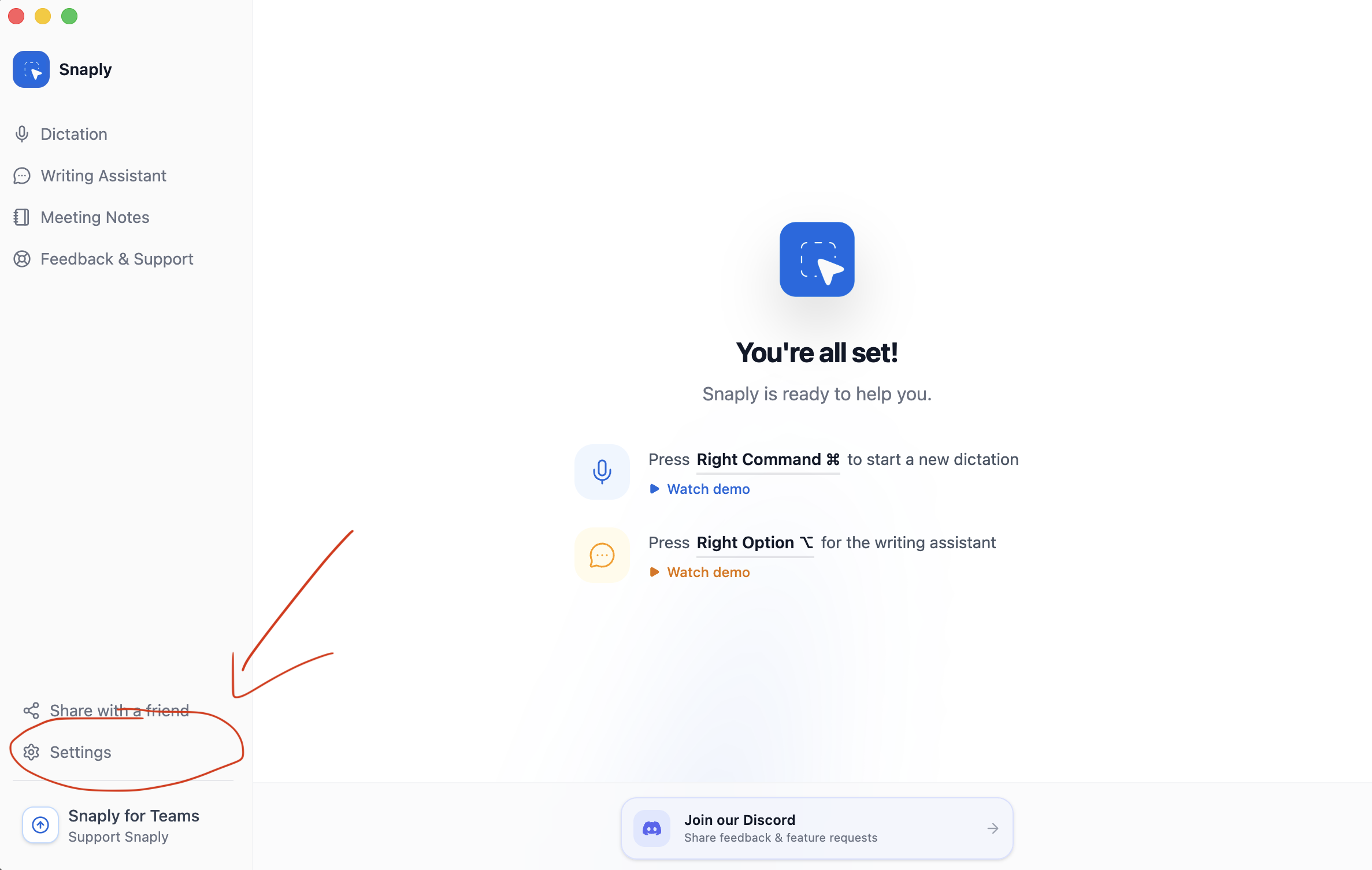
2
Select Dictation Settings
Navigate to the Dictation section in the settings menu.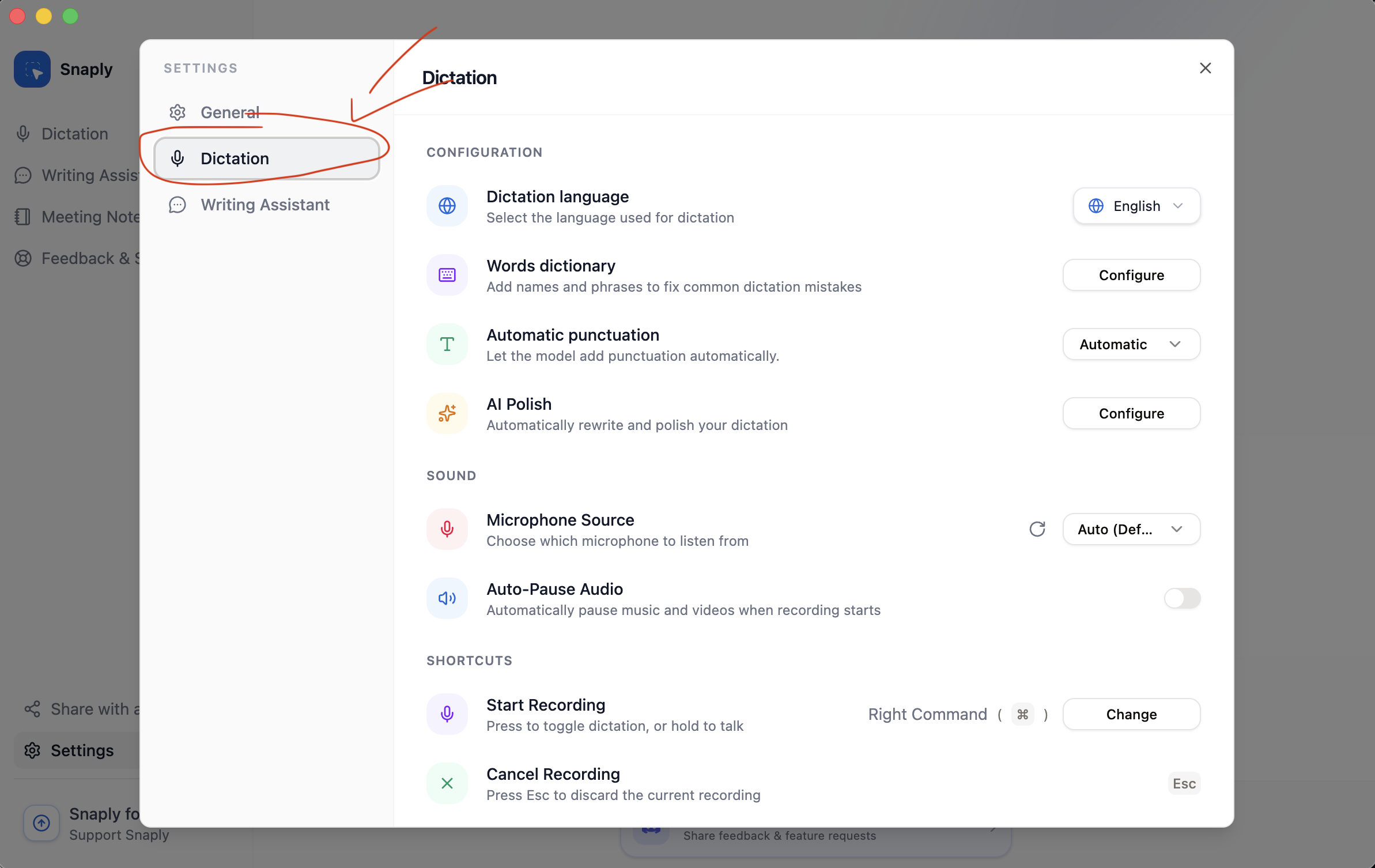
3
Open Custom Dictionary
Find the Words dictionary section and click Configure.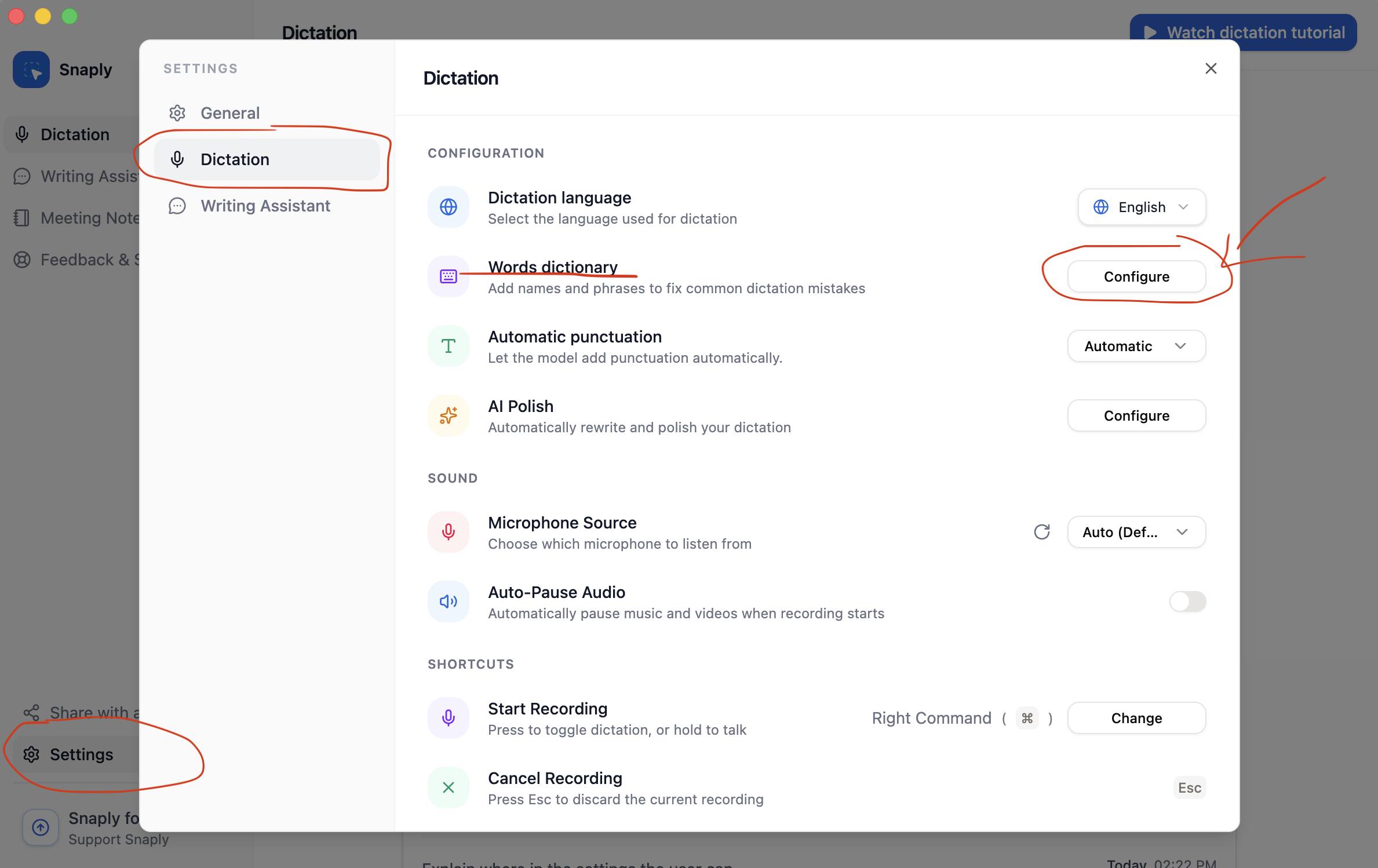
4
Add Your Word
Type the word you want to add and press Enter or click Add word.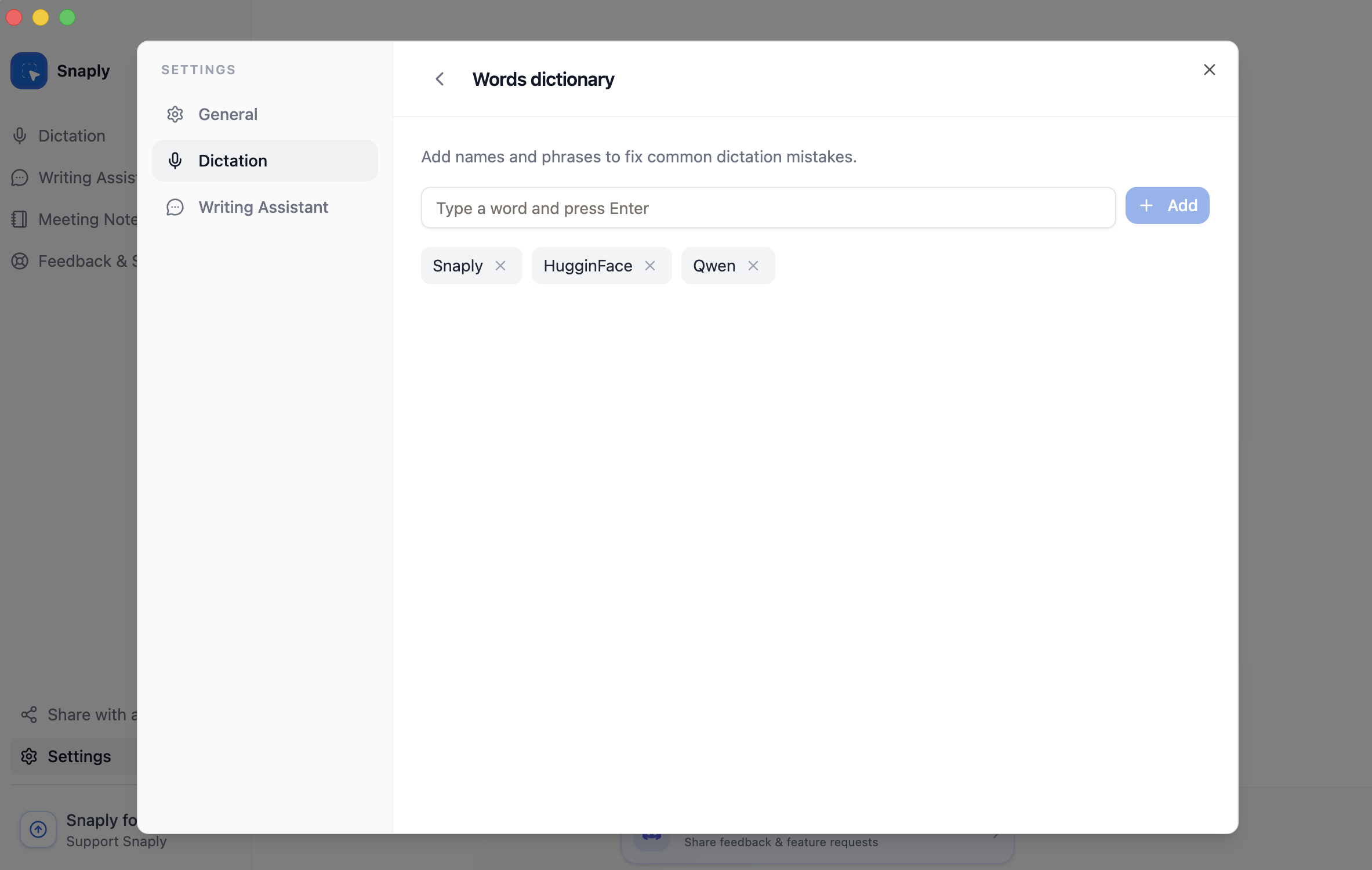
Add Common Misspellings
After adding the main word, you can attach the mistakes Snaply is most likely to make under it. Examples:Snaplywith misspellings likesnapyorsnapplyFluidAudiowith a misspelling likeFluidaudioGiacomowith variants that people often pronounce or spell differently
Tips
- Add words after real misses instead of trying to predict everything up front.
- Focus on names, acronyms, products, and domain-specific words first.
- Add misspellings only for repeated failures, not every imaginable variation.
Managing Your Dictionary
From Settings -> Dictation -> Words dictionary, you can:- Search by word or misspelling
- Sort alphabetically or by newest
- Add and remove misspellings
- Delete words you no longer need