
- English
- Multi-language
Which One Should You Pick?
English
Use English if you mostly dictate in English and want the simplest setup.Multi-language
Use Multi-language if you speak any supported non-English language or switch languages often. Snaply supports 25 European languages in Multi-language mode:Default Selection
On first launch, Snaply chooses a starting option from your Mac’s primary language:- If your Mac is set to English, Snaply starts with English.
- If your Mac’s primary language is one of the supported non-English languages above, Snaply starts with Multi-language.
- Otherwise, it falls back to English.
How To Change It
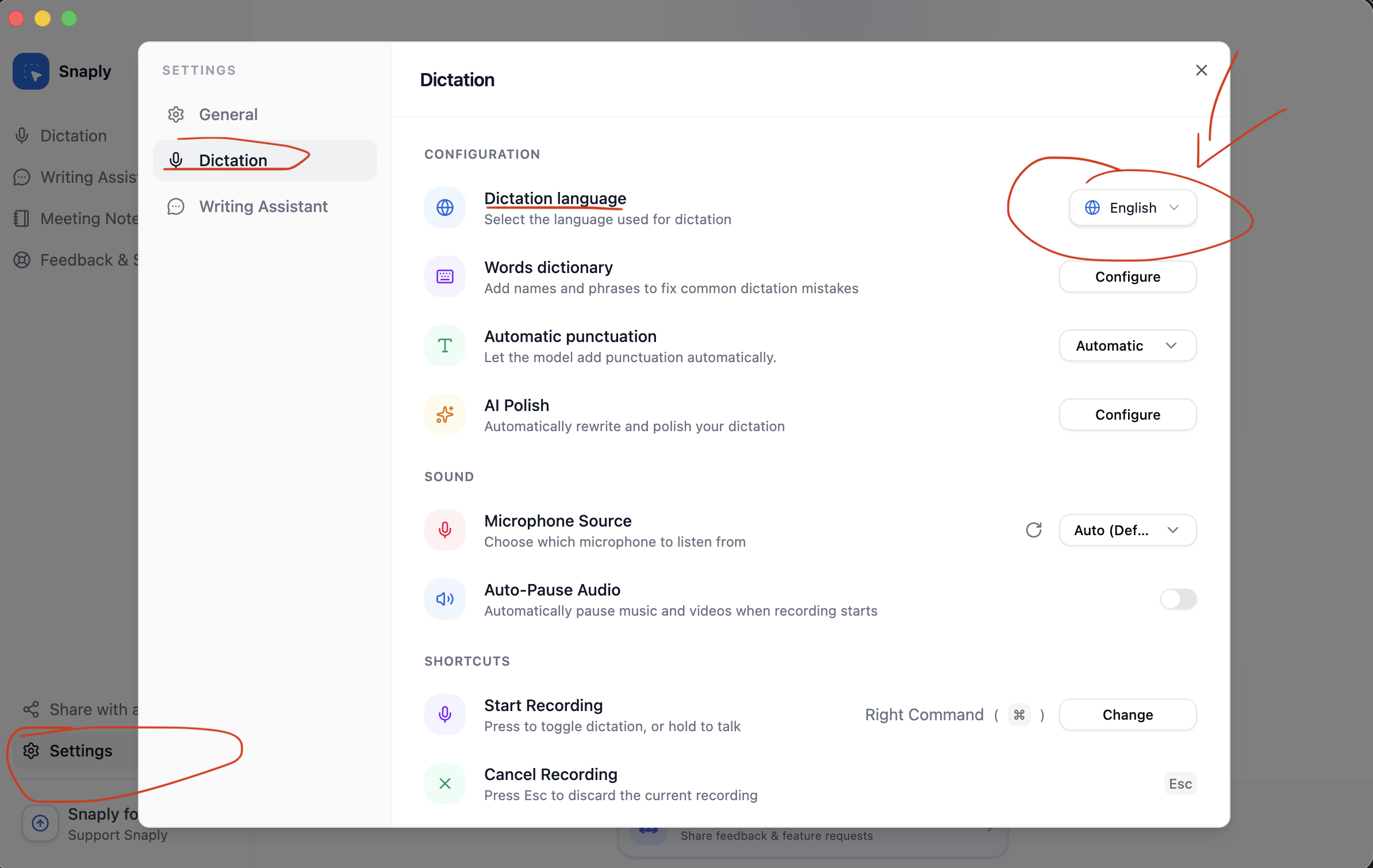
- Go to Settings -> Dictation.
- Under Dictation language, choose English or Multi-language.
- If needed, Snaply downloads and initializes that language option.
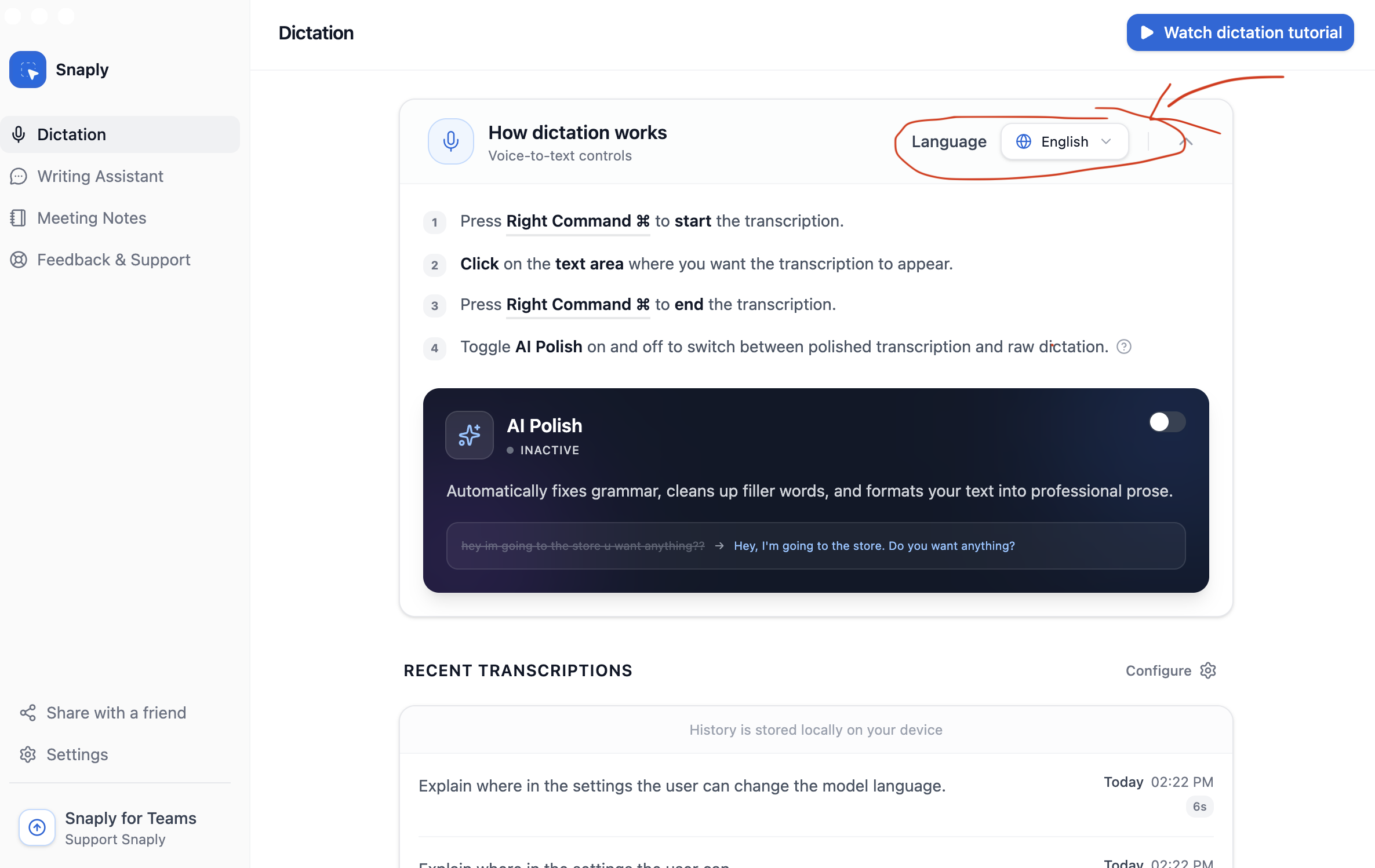
Change language model from the main page
Change language model from settings
Notes
- You only need one language option active at a time.
- Explicit punctuation is English-first. In other languages, Automatic punctuation is the safer default.
- Meeting Notes uses the same English vs Multi-language setting as Dictation.