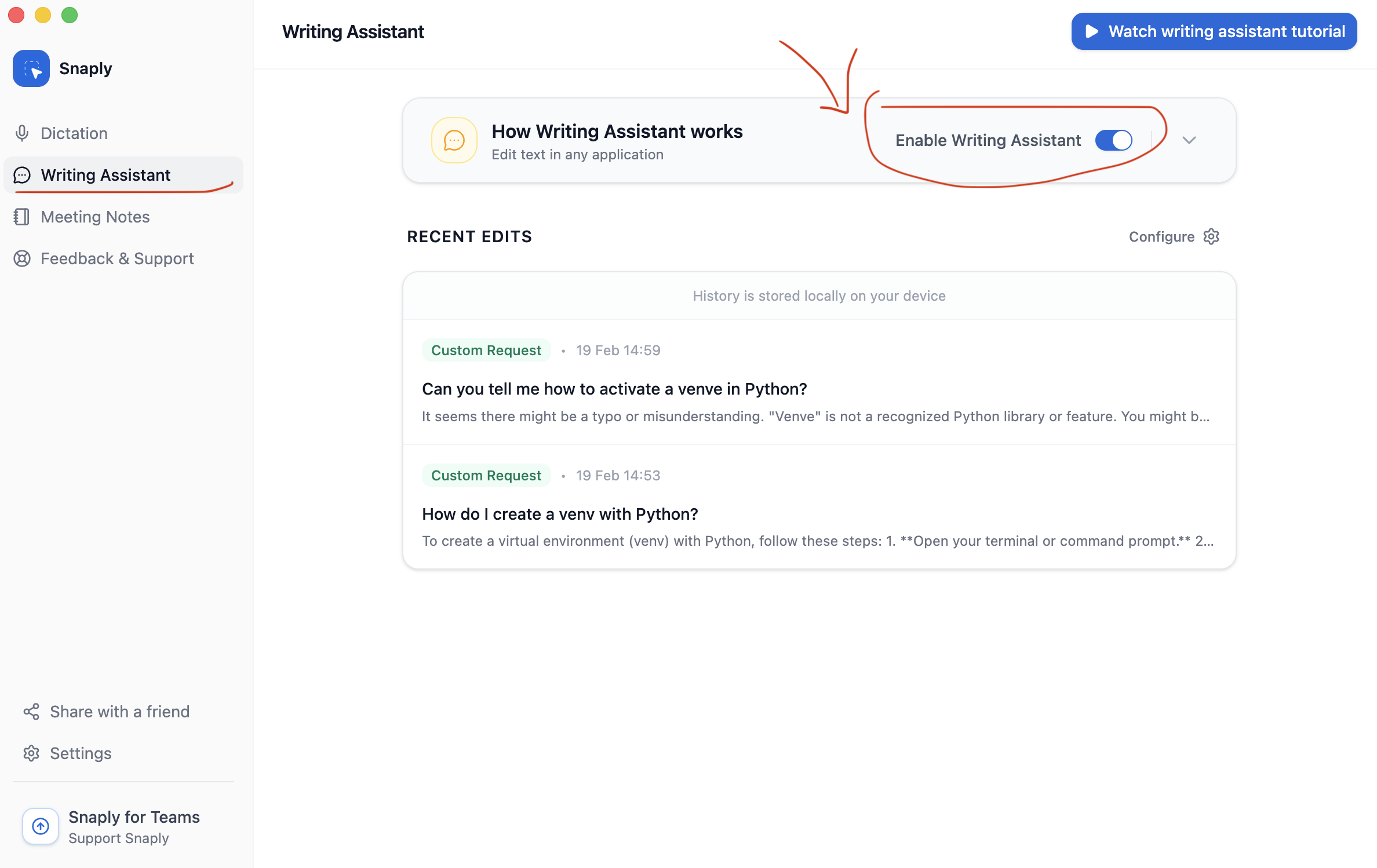
The Writing Assistant helps you write better, faster. Select any text on your Mac and let AI fix grammar, rewrite, or transform it instantly. It works 100% locally, ensuring your data stays private.

Enableing the Writing Assistant

To start using the Writing Assistant, you need to enable it in the settings.
  1. Open the Snaply app.
  2. Go to the Writing Assistant tab.
  3. Toggle the switch to On.
Enable Writing Assistant

How to use the Writing Assistant

There are two easy ways to use the Writing Assistant:
  1. Shortcut: Select text and press Right ⌥ (Right Option) to instantly open the assistant.
  2. The Blue Dot: Select any text and click the small blue dot that appears near your cursor.

Key Features

  • Modes: Choose from default modes like Grammar, Polish, and Translate, or create your own custom workflows.
  • Models: Select the best AI model for your needs, from fast local options to powerful cloud models.