> ## Documentation Index
> Fetch the complete documentation index at: https://docs.snaply.ai/llms.txt
> Use this file to discover all available pages before exploring further.
# Punctuation
> Learn how Snaply handles punctuation in AI dictation for Mac, from automatic cleanup for natural speech to spoken commands for exact, reliable formatting.
Snaply gives [dictation](/dictation/overview) two input styles:
* **Automatic** for natural speech
* **Explicit** when you want to say punctuation and structure out loud
## Choose A Mode
| Mode | Best for | Example input | Example output |
| --------- | --------------------------------- | --------------------------------------------- | --------------------------- |
| Automatic | email, messages, normal prose | `hello how are you today` | `Hello, how are you today?` |
| Explicit | precise structure, lists, symbols | `hello comma how are you today question mark` | `Hello, how are you today?` |
Explicit punctuation is documented in the app as an English-first workflow. In other languages, Snaply reverts to automatic punctuation behavior.
## Automatic Punctuation
* Best for normal prose, messages, and most email dictation
* Works well across English and Multi-language dictation
* Handles capitalization and punctuation for you
* Can format longer email-style dictation when Snaply detects an email
## Explicit Punctuation
* Best for exact line breaks, lists, symbols, and manual formatting
* Lets you speak commands like `comma`, `new line`, or `open parenthesis`
* Does **not** apply automatic email polishing
* Works best in English
## Change The Setting
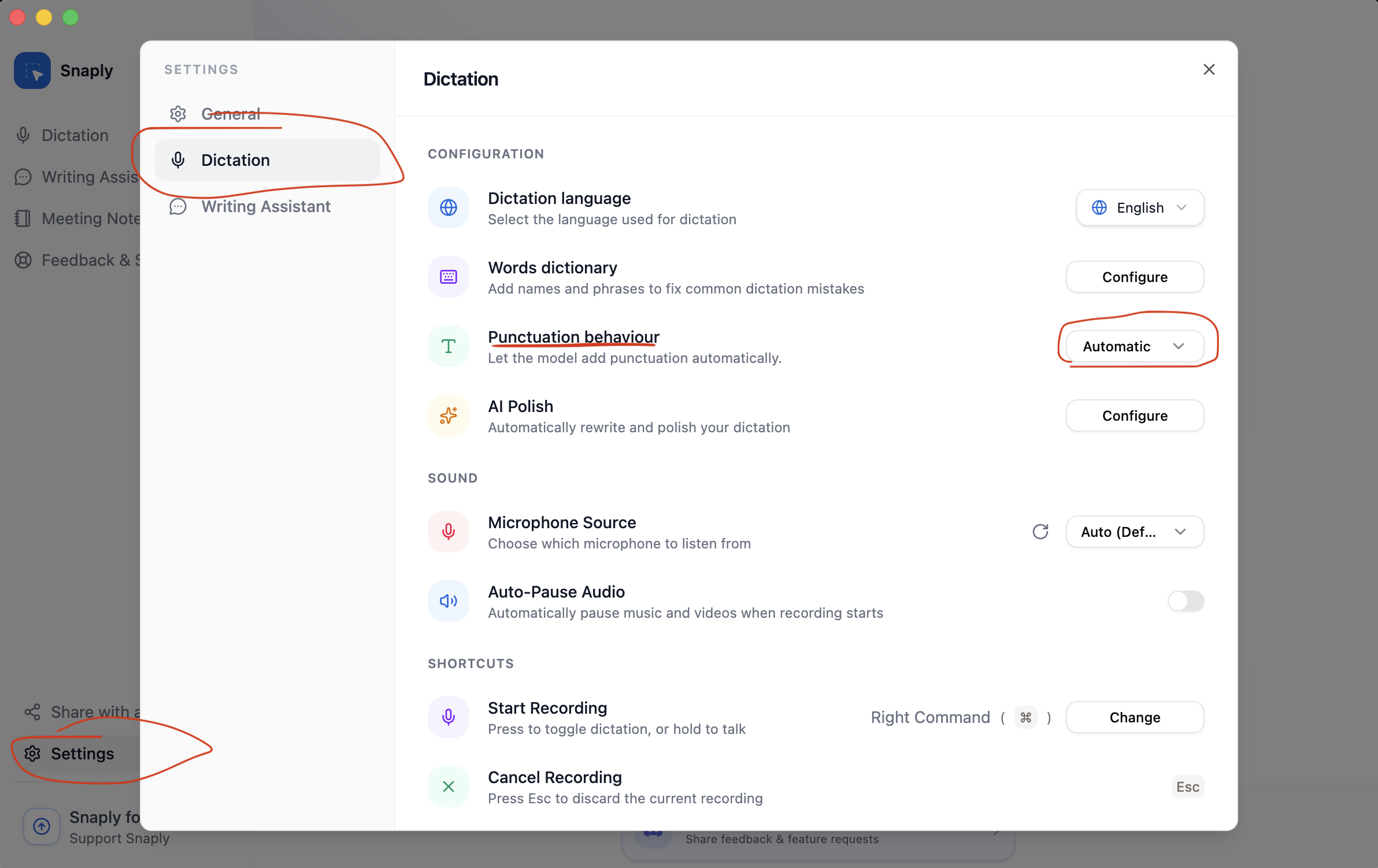
Go to **Settings -> Dictation -> Punctuation behaviour** and choose **Automatic** or **Explicit**.
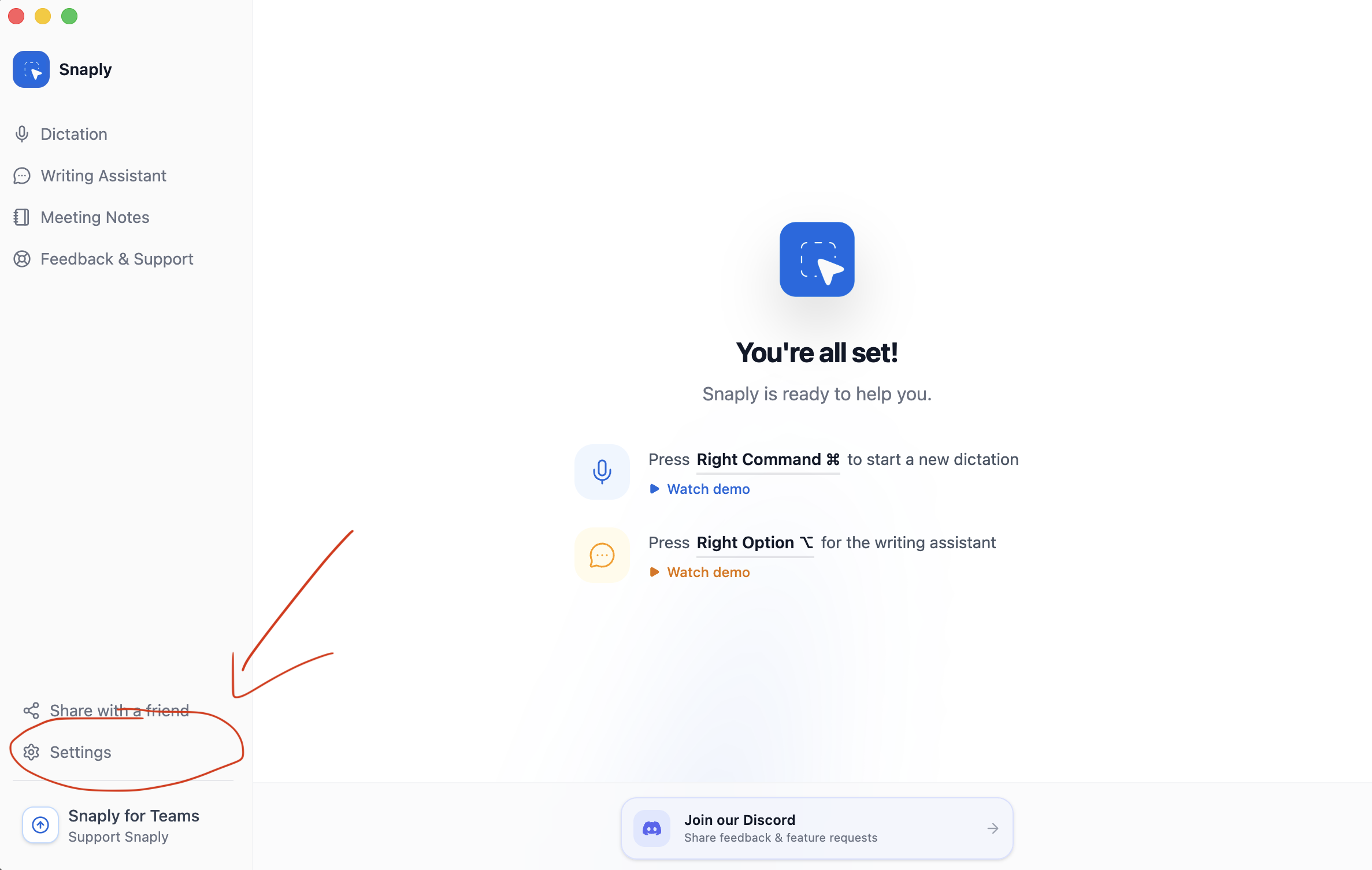
Click on **Settings** in the bottom left corner of Snaply.
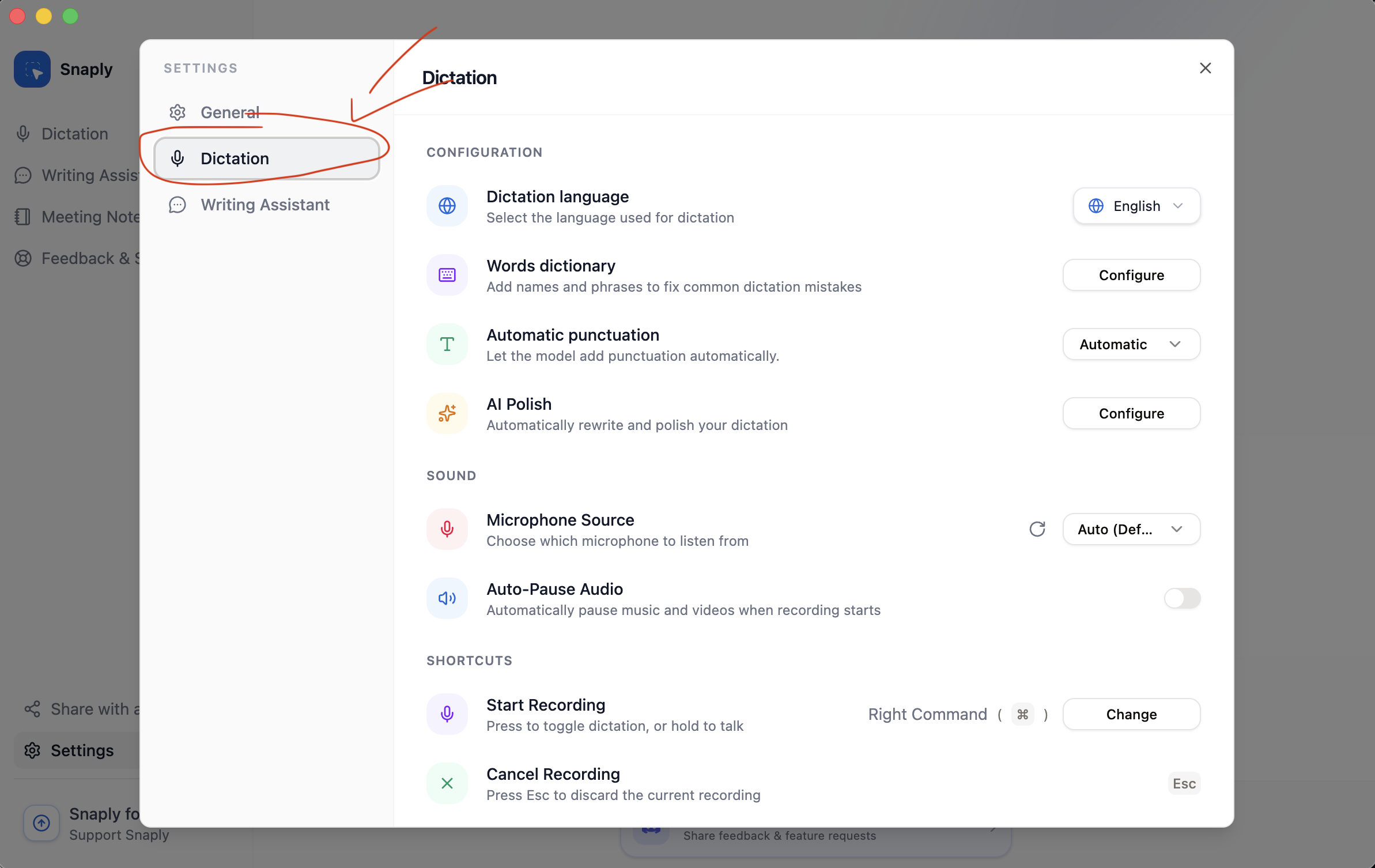
 Navigate to the **Dictation** section in the settings menu.
 Find the **Punctuation** setting and select your preferred mode.
 | Spoken command | Result |
| ---------------------------------------- | --------------- |
| `period`, `full stop`, `dot` | `.` |
| `comma` | `,` |
| `question mark` | `?` |
| `exclamation mark` | `!` |
| `colon` | `:` |
| `semicolon` | `;` |
| `new line` | line break |
| `new paragraph` | paragraph break |
| `new bullet point` | bullet item |
| `new numbered list item` | numbered item |
| `open parenthesis` / `close parenthesis` | `(` / `)` |
| `open bracket` / `close bracket` | `[` / `]` |
| `double quote` | `"` |
| `single quote` | `'` |
| `slash` | `/` |
| `back slash` | `\` |
| `at sign` | `@` |
| `ampersand` | `&` |
| `underscore` | `_` |
## Practical Advice
* Use **Automatic** unless you need very deliberate structure.
* Use **Explicit** for lists, symbols, or formatting-heavy dictation.
* Brief pauses help Automatic mode place sentence boundaries cleanly.
## Related Pages
* [Back to Dictation overview](/dictation/overview)
* [Choose your dictation language](/dictation/languages)
* [Create snippets for repeated structures](/dictation/snippets)
| Spoken command | Result |
| ---------------------------------------- | --------------- |
| `period`, `full stop`, `dot` | `.` |
| `comma` | `,` |
| `question mark` | `?` |
| `exclamation mark` | `!` |
| `colon` | `:` |
| `semicolon` | `;` |
| `new line` | line break |
| `new paragraph` | paragraph break |
| `new bullet point` | bullet item |
| `new numbered list item` | numbered item |
| `open parenthesis` / `close parenthesis` | `(` / `)` |
| `open bracket` / `close bracket` | `[` / `]` |
| `double quote` | `"` |
| `single quote` | `'` |
| `slash` | `/` |
| `back slash` | `\` |
| `at sign` | `@` |
| `ampersand` | `&` |
| `underscore` | `_` |
## Practical Advice
* Use **Automatic** unless you need very deliberate structure.
* Use **Explicit** for lists, symbols, or formatting-heavy dictation.
* Brief pauses help Automatic mode place sentence boundaries cleanly.
## Related Pages
* [Back to Dictation overview](/dictation/overview)
* [Choose your dictation language](/dictation/languages)
* [Create snippets for repeated structures](/dictation/snippets)