> ## Documentation Index
> Fetch the complete documentation index at: https://docs.snaply.ai/llms.txt
> Use this file to discover all available pages before exploring further.
# Languages
> See which languages Snaply supports for AI dictation on Mac, when to choose English or Multi-language, and how language settings affect transcription.
In the app, Snaply shows two [dictation](/dictation/overview) language choices:
* **English**
* **Multi-language**
That is the choice you make in the app. Behind the scenes, Snaply may use a smaller or larger local model depending on your Mac's available memory, but the user-facing setup remains the same.
## Which One Should You Pick?
### English
Use **English** if you mostly dictate in English and want the simplest setup.
### Multi-language
Use **Multi-language** if you speak any supported non-English language or switch languages often.
Snaply supports 25 European languages in Multi-language mode:
| Language | Code | Language | Code |
| ---------- | ---- | ---------- | ---- |
| Bulgarian | `bg` | Maltese | `mt` |
| Croatian | `hr` | Polish | `pl` |
| Czech | `cs` | Portuguese | `pt` |
| Danish | `da` | Romanian | `ro` |
| Dutch | `nl` | Russian | `ru` |
| English | `en` | Slovak | `sk` |
| Estonian | `et` | Slovenian | `sl` |
| Finnish | `fi` | Spanish | `es` |
| French | `fr` | Swedish | `sv` |
| German | `de` | Ukrainian | `uk` |
| Greek | `el` | | |
| Hungarian | `hu` | | |
| Italian | `it` | | |
| Latvian | `lv` | | |
| Lithuanian | `lt` | | |
## Default Selection
On first launch, Snaply chooses a starting option from your Mac's primary language:
* If your Mac is set to English, Snaply starts with **English**.
* If your Mac's primary language is one of the supported non-English languages above, Snaply starts with **Multi-language**.
* Otherwise, it falls back to **English**.
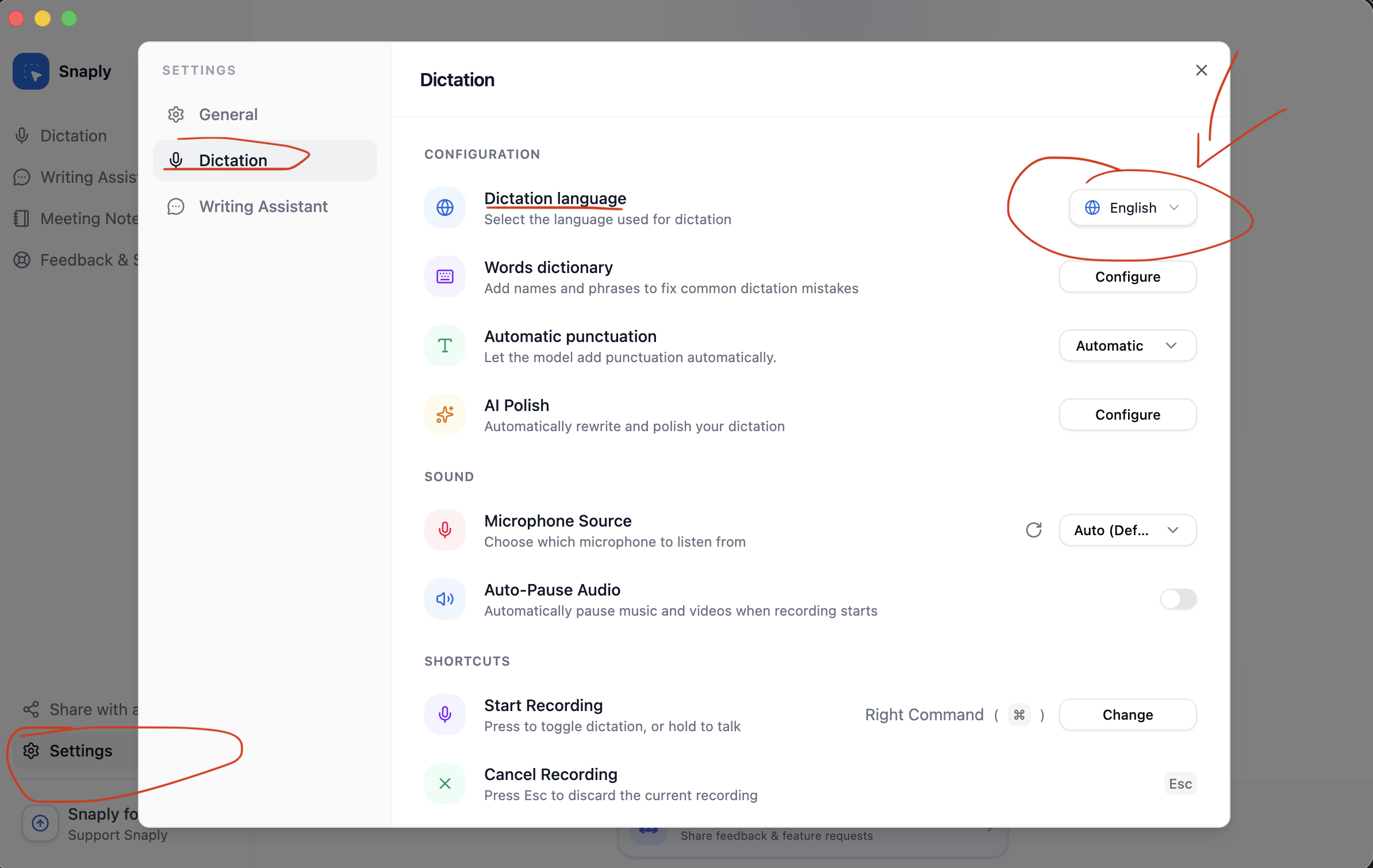
## How To Change It
1. Go to **Settings -> Dictation**.
2. Under **Dictation language**, choose **English** or **Multi-language**.
3. If needed, Snaply downloads and initializes that language option.
The download only happens once on that Mac for each language option.
### Change language model from the main page
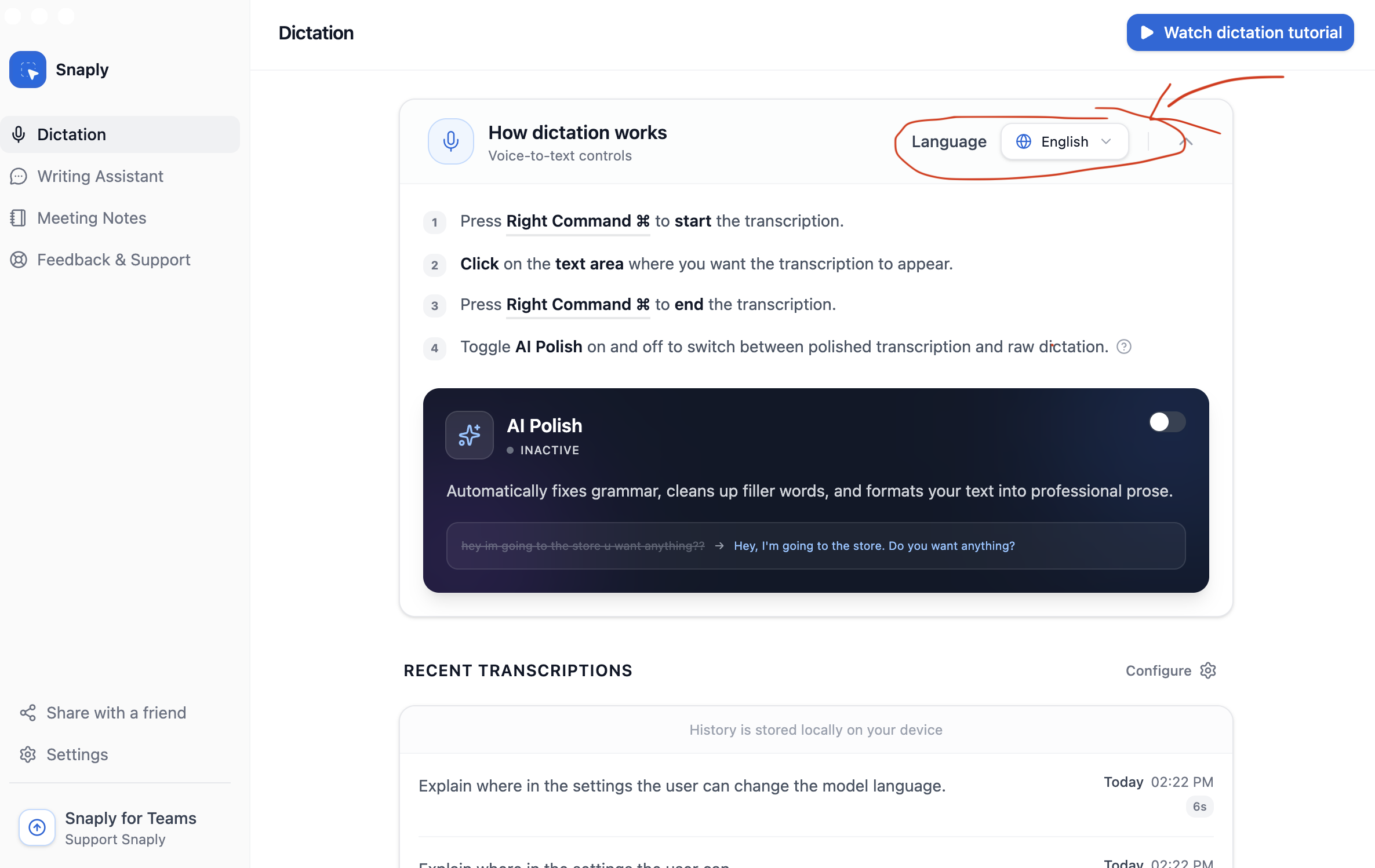 ### Change language model from settings
 ## Notes
* You only need one language option active at a time.
* **Explicit punctuation** is English-first. In other languages, **Automatic** punctuation is the safer default.
* [Meeting Notes](/meeting-notes/overview) uses the same English vs Multi-language setting as Dictation.
## Related Pages
* [Back to Dictation overview](/dictation/overview)
* [Control punctuation behavior](/dictation/punctuation)
* [Use these languages in Meeting Notes](/meeting-notes/multi-language)
## Notes
* You only need one language option active at a time.
* **Explicit punctuation** is English-first. In other languages, **Automatic** punctuation is the safer default.
* [Meeting Notes](/meeting-notes/overview) uses the same English vs Multi-language setting as Dictation.
## Related Pages
* [Back to Dictation overview](/dictation/overview)
* [Control punctuation behavior](/dictation/punctuation)
* [Use these languages in Meeting Notes](/meeting-notes/multi-language)