> ## Documentation Index
> Fetch the complete documentation index at: https://docs.snaply.ai/llms.txt
> Use this file to discover all available pages before exploring further.
# Custom Words
> Teach Snaply your names, acronyms, and jargon so AI dictation on Mac transcribes your vocabulary more accurately and keeps everyday writing flowing.
**Your work has its own language.** Snaply lets you teach [dictation](/dictation/overview) the names, acronyms, product terms, company jargon, and uncommon spellings that matter to you.
## What A Custom Word Does
Each entry has:
* The **final word** you want in the transcript
* Optional **misspellings or variants** that should resolve to that word
This is most useful when Snaply consistently hears the right term the wrong way.
## Good Use Cases
| Use case | Without custom words | With custom words |
| --------------- | ---------------------- | -------------------- |
| Technical terms | "EBITDA" -> "a bit da" | "EBITDA" -> "EBITDA" |
| Company names | "Nvidia" -> "in video" | "Nvidia" -> "Nvidia" |
| Acronyms | "LLM" -> "el el em" | "LLM" -> "LLM" |
| Product names | "Jira" -> "jeer a" | "Jira" -> "Jira" |
| Industry jargon | "SaaS" -> "sass" | "SaaS" -> "SaaS" |
Custom words are not just cosmetic. They also help Snaply's runtime vocabulary recognize unusual terms more reliably, which makes everyday dictation feel much smoother once your common vocabulary is covered.
## Add A Word
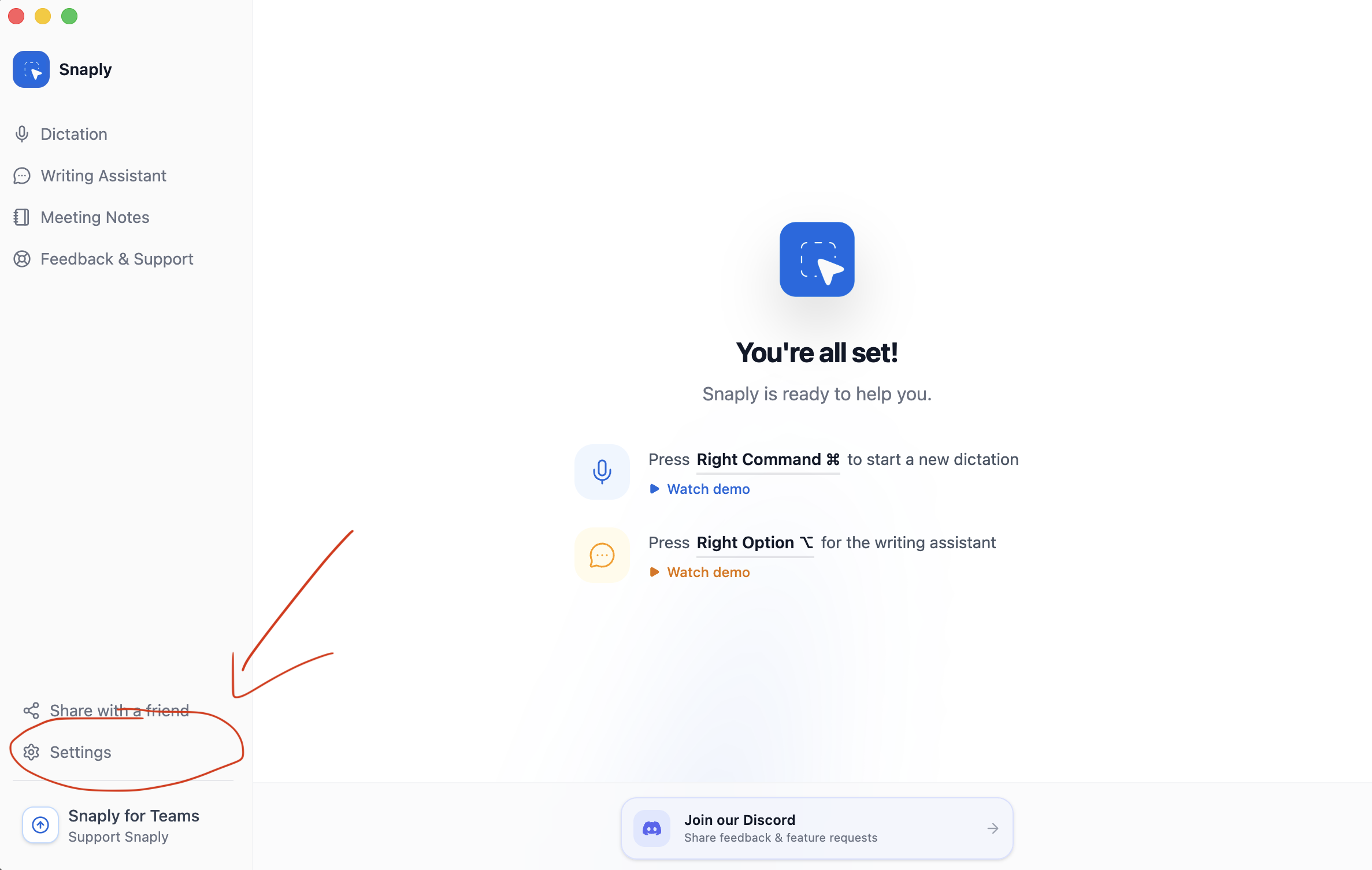
Click on **Settings** in the bottom left corner of Snaply.
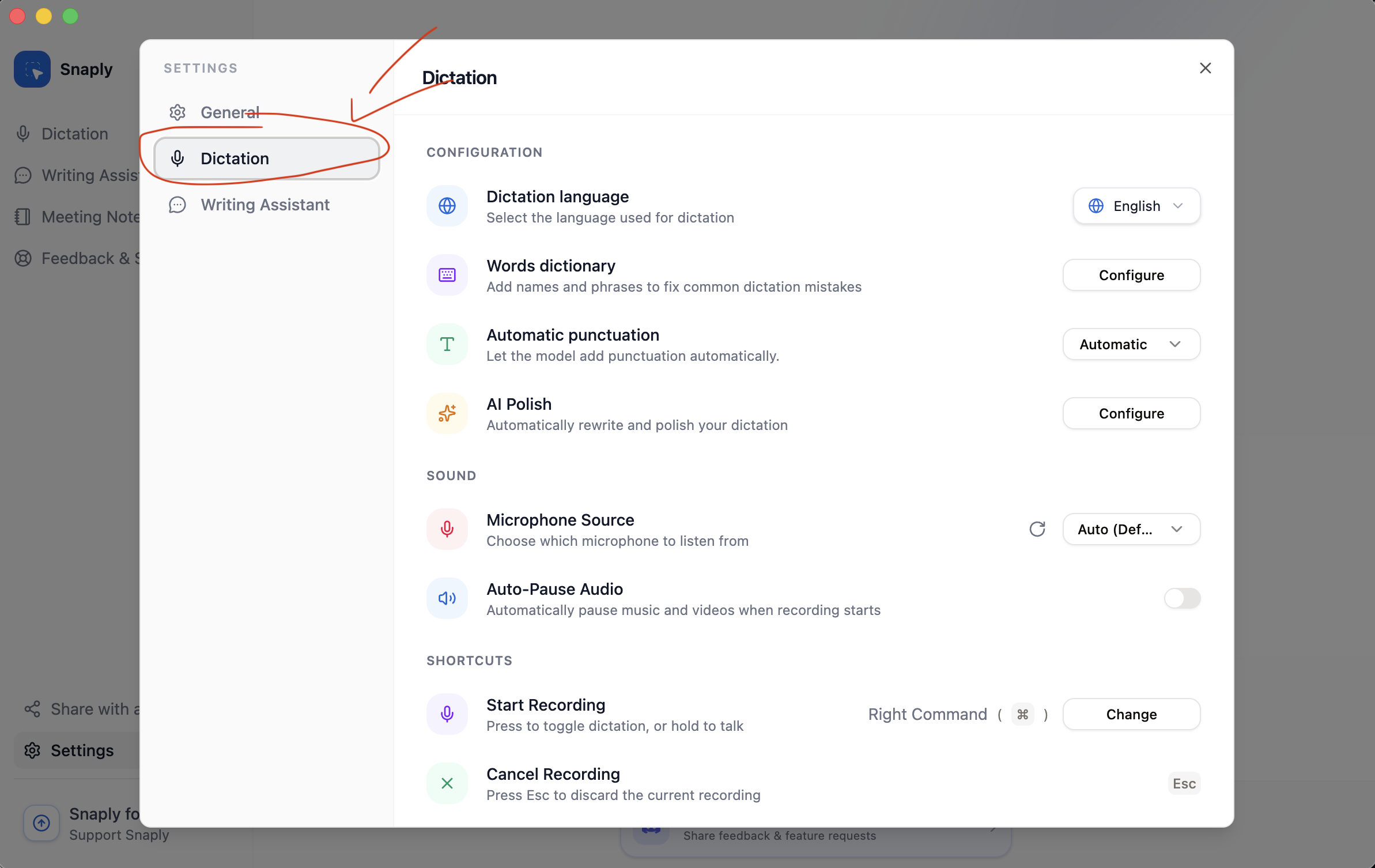
 Navigate to the **Dictation** section in the settings menu.
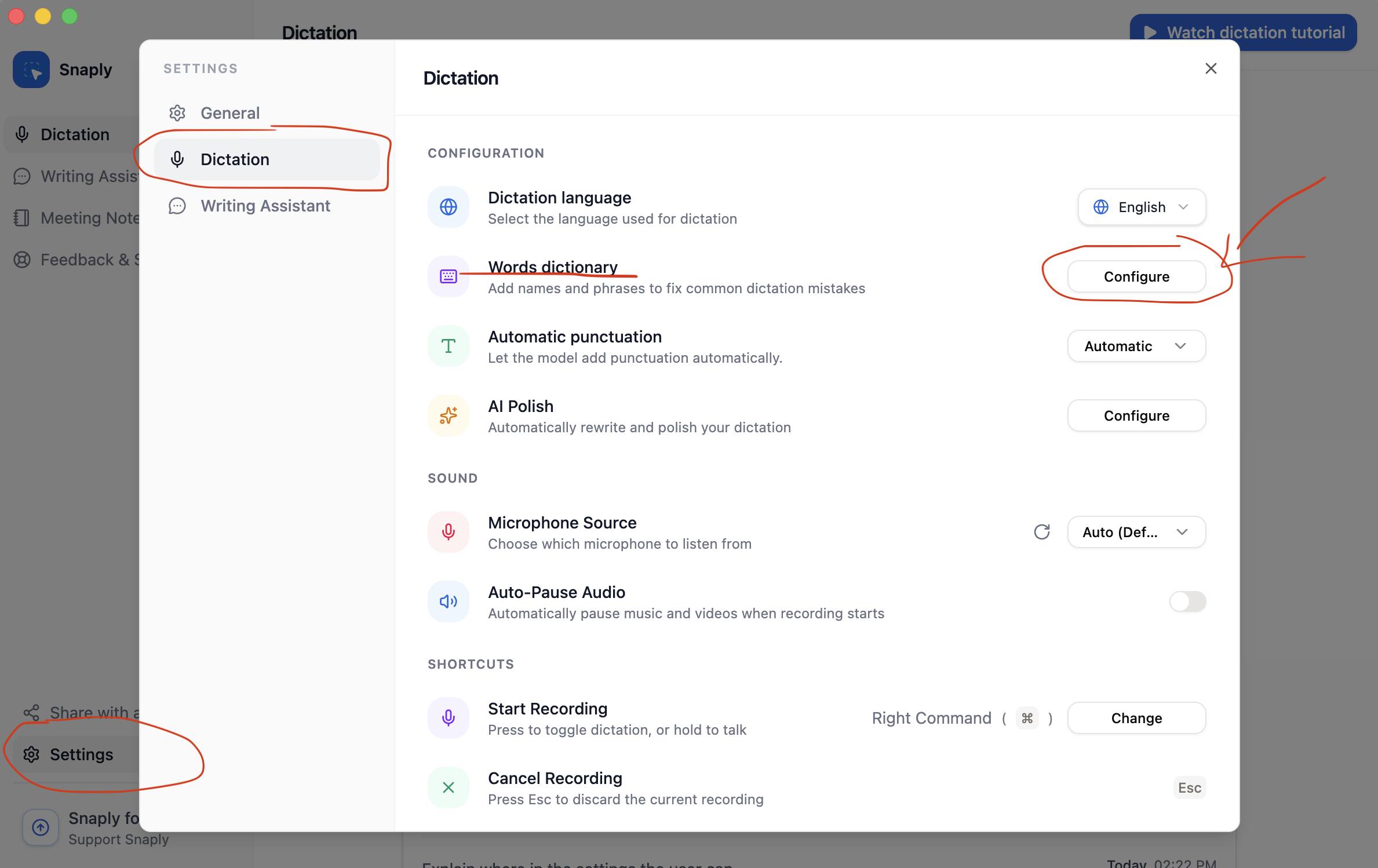
 Find the **Words dictionary** section and click **Configure**.
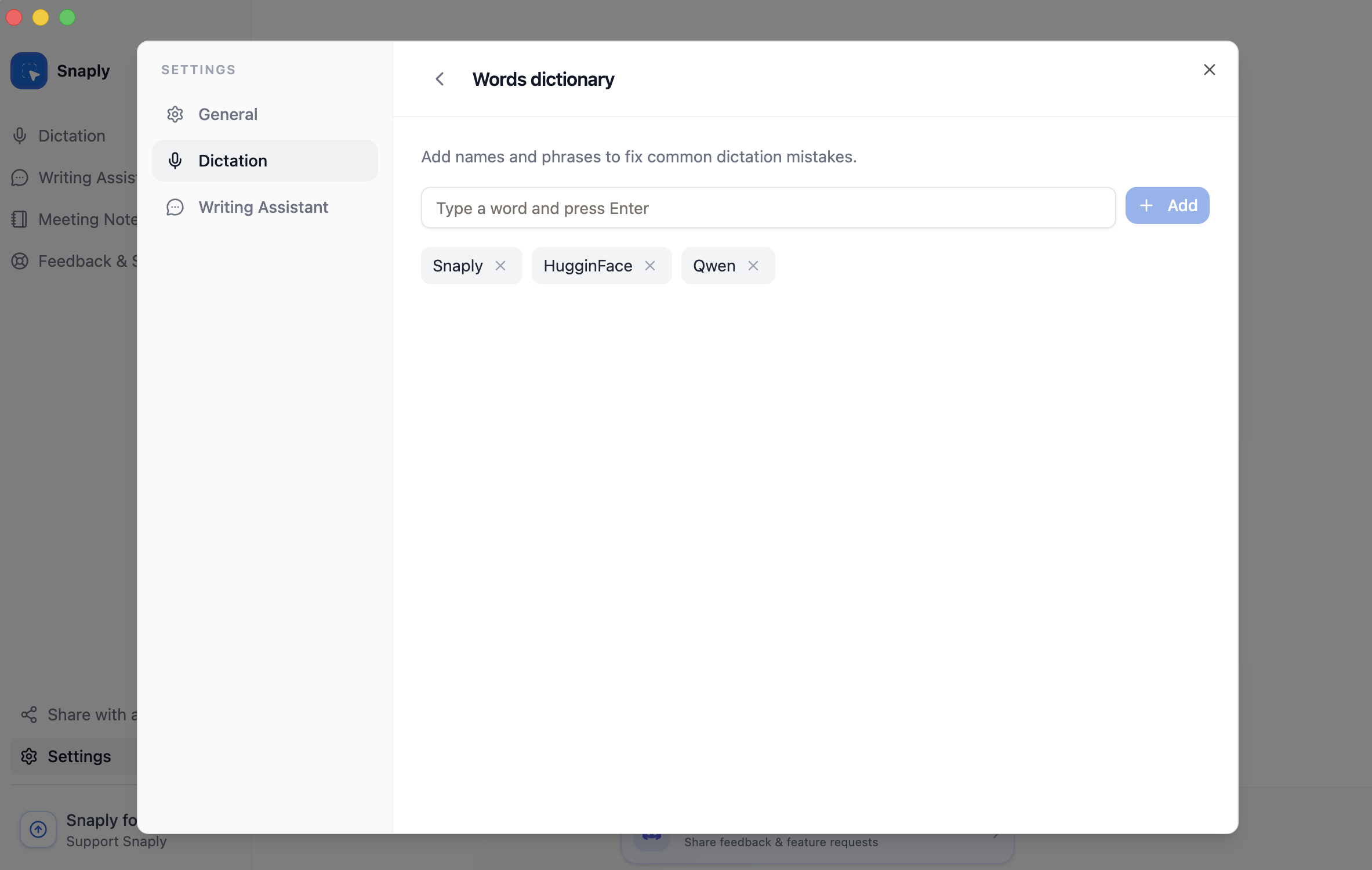
 Type the word you want to add and press **Enter** or click **Add word**.
 ## Add Common Misspellings
After adding the main word, you can attach the mistakes Snaply is most likely to make under it.
Examples:
* `Snaply` with misspellings like `snapy` or `snapply`
* `FluidAudio` with a misspelling like `Fluidaudio`
* `Giacomo` with variants that people often pronounce or spell differently
Each word can store up to **10** misspellings or variants.
## Tips
* Add words after **real misses** instead of trying to predict everything up front.
* Focus on **names, acronyms, products, and domain-specific words** first.
* Add misspellings only for **repeated failures**, not every imaginable variation.
## Managing Your Dictionary
From **Settings -> Dictation -> Words dictionary**, you can:
* Search by word or misspelling
* Sort alphabetically or by newest
* Add and remove misspellings
* Delete words you no longer need
If you want to change the main word itself, remove the old entry and add it again with the spelling you want.
## Related Pages
* [Back to Dictation overview](/dictation/overview)
* [Add text snippets for repeated phrases](/dictation/snippets)
* [Review punctuation options](/dictation/punctuation)
## Add Common Misspellings
After adding the main word, you can attach the mistakes Snaply is most likely to make under it.
Examples:
* `Snaply` with misspellings like `snapy` or `snapply`
* `FluidAudio` with a misspelling like `Fluidaudio`
* `Giacomo` with variants that people often pronounce or spell differently
Each word can store up to **10** misspellings or variants.
## Tips
* Add words after **real misses** instead of trying to predict everything up front.
* Focus on **names, acronyms, products, and domain-specific words** first.
* Add misspellings only for **repeated failures**, not every imaginable variation.
## Managing Your Dictionary
From **Settings -> Dictation -> Words dictionary**, you can:
* Search by word or misspelling
* Sort alphabetically or by newest
* Add and remove misspellings
* Delete words you no longer need
If you want to change the main word itself, remove the old entry and add it again with the spelling you want.
## Related Pages
* [Back to Dictation overview](/dictation/overview)
* [Add text snippets for repeated phrases](/dictation/snippets)
* [Review punctuation options](/dictation/punctuation)